
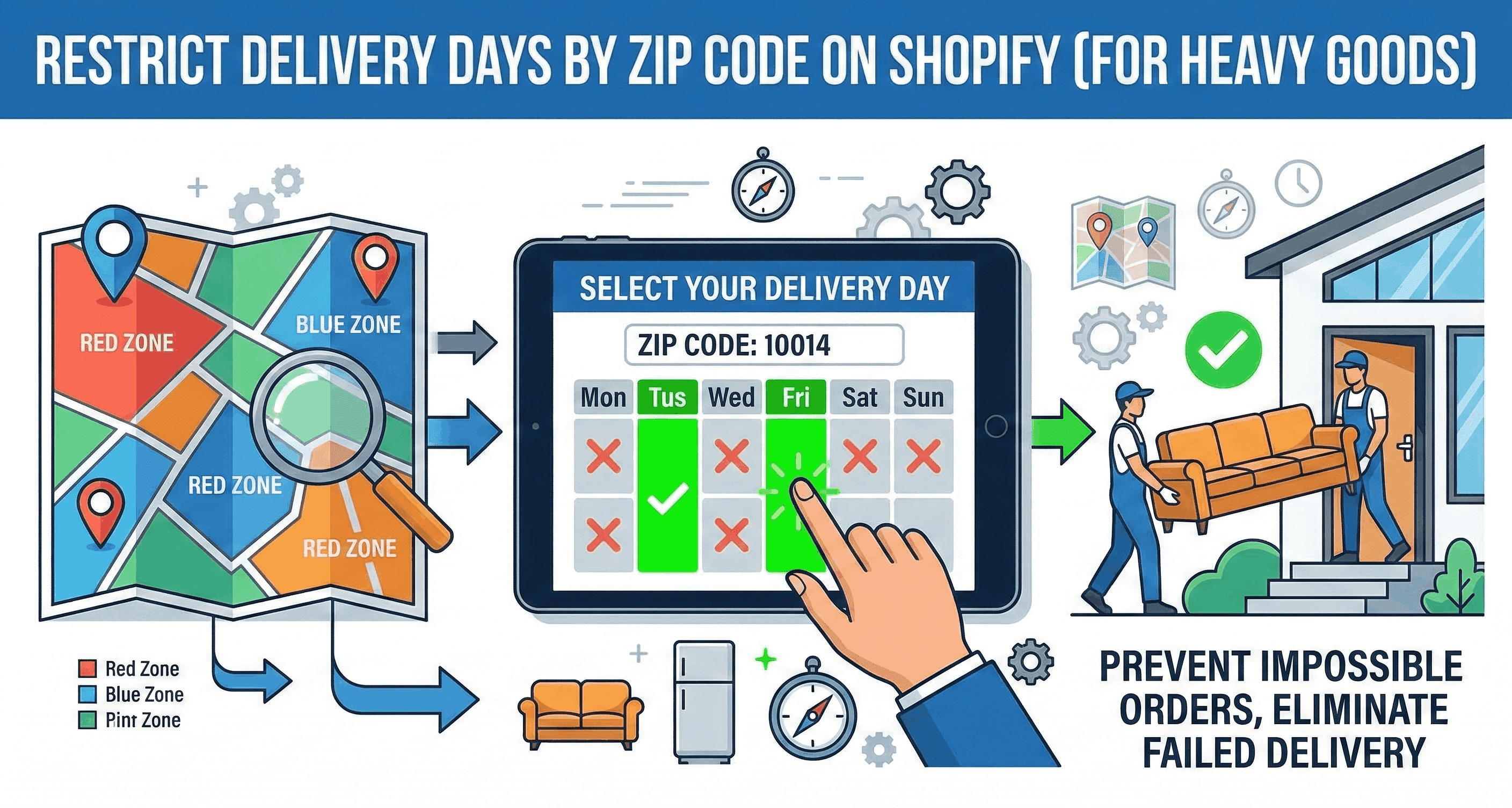
How to Restrict Delivery Days by ZIP Code on Shopify (For Heavy Goods)
Learn how to restrict delivery days by ZIP code on Shopify. Use advanced local delivery rules to prevent failed heavy freight runs and boost checkout conversion.
Imagine a scenario every furniture, appliance, and heavy goods retailer knows too well: your customer in a remote postcode orders a $2,000 custom sofa. Because of a gap in your store’s shipping configuration, Shopify allows them to select "Next-Day Delivery."
Your two-man white-glove team doesn’t service that postcode on Thursdays. The delivery fails. The customer is furious, leaving a one-star review, and you are left absorbing a massive $150 freight redelivery cost.
If you are shipping T-shirts, logistics are easy: you print a label and hand it to a national courier. But if you are managing complex freight, high-value goods, or scheduled white-glove delivery vans, you cannot rely on generalized shipping rules. You must dictate exactly when and where your trucks go.
If you are trying to figure out how to restrict delivery days by ZIP code on Shopify (or postcode, for our UK merchants), you will quickly realize that Shopify’s native functionality is not built for granular, day-of-the-week routing.
In this comprehensive guide, we will break down the limitations of basic Shopify shipping zones, explain how to implement precise postcode-based date restrictions, and show you exactly how to build a heavy-goods checkout experience that prevents logistically impossible orders from ever being placed.
Quick Takeaways:
Native Shopify Is Too Broad: Shopify’s native "Local Delivery" settings let you limit delivery by radius or ZIP code, but you cannot assign specific days of the week to specific postcodes.
The "Zone-to-Day" Strategy: For efficient routing, heavy goods retailers must group nearby ZIP codes into zones, and assign explicit delivery days (e.g., "Zone A only gets deliveries on Tuesdays and Thursdays").
The Solution Requires an App: To achieve this granular control, you must install a dedicated order routing app with a frontend calendar widget, such as Flare or DingDoong.
Block Checkout: The most effective setup prevents the user from proceeding to payment unless their ZIP code matches an available day on the calendar.
The Problem: Why ZIP Code Restrictions Matter for Heavy Goods
Before we dive into the technical setup, it is necessary to understand why this level of logistical control is a requirement, not a luxury, for high-ticket e-commerce.
The Cost of Failed Routing
When a customer orders a small item, the parcel network absorbs the complexity. The courier takes the box, sorts it at a hub, and delivers it whenever it is most efficient for their daily route.
Two-man delivery (white-glove delivery) does not work this way. A single delivery van can only complete between six and ten stops per day, depending on the assembly required at the destination. If your van is scheduled to be in West London on Tuesday, but a customer in East London demands delivery on the same day, you either stretch your driver beyond capacity (risking damage and overtime) or dispatch a second truck, immediately destroying your profit margin on that order.
The Need for Clustered Routing
To maintain profitability in heavy goods logistics, you must practice clustered routing. This means forcing all deliveries in a specific geographic area to happen on the same day.
For example:
Mondays and Wednesdays: Deliveries to ZIP codes starting with 100XX (Downtown).
Tuesdays and Thursdays: Deliveries to ZIP codes starting with 101XX (Suburbs).
Fridays: Deliveries to ZIP codes starting with 102XX (Rural).
By forcing the customer into this constraints, you maximize the efficiency of your fleet and protect your bottom line.
The "WISMO" Plague
WISMO stands for "Where Is My Order?" When customers buy expensive furniture with vague "3-5 week" delivery times, their anxiety spikes. They will repeatedly email your support team asking for a concrete delivery date.
By forcing the customer to enter their ZIP code at checkout and subsequently selecting the exact day your truck will be in their area, you eliminate the uncertainty. The customer takes ownership of the delivery date, and your WISMO tickets plummet.
Evaluating Shopify's Native "Local Delivery" Options
Shopify does have a built-in feature designed for basic local delivery. Let’s look at its capabilities and analyze why it falls short for complex operations.
Step 1: Navigating to Local Delivery
To view the basic native options:
From your Shopify admin dashboard, go to Settings.
Click on Shipping and delivery.
Scroll down to the Local delivery section.
Click Manage next to the specific location/warehouse you are shipping from.
Check the box that says This location offers local delivery.
Step 2: Defining the Delivery Area
Once native local delivery is enabled, Shopify gives you two methods to define where you are willing to drive:
Method A: Maximum Delivery Radius You can select a unit of measurement (miles or kilometers) and set a maximum radius from your warehouse (e.g., "Deliver within a 50-mile radius").
Method B: Postal Codes / ZIP Codes Alternatively, you can manually enter a comma-separated list of the exact ZIP codes you service. Shopify allows you to use wildcards. For example, entering 9021* means your store will allow local delivery for 90210, 90211, 90212, etc.
The Fatal Flaw of Native Shopify
While you can definitively tell Shopify where you will deliver (the ZIP codes), Shopify provides absolutely no native way to specify when you will deliver to those zones.
If you put the ZIP code 90210 into your native Shopify local delivery settings, the customer can simply select "Local Delivery" at checkout. They are given no calendar. They cannot pick a day. You have no way of enforcing that 90210 only gets deliveries on Wednesdays.
If you are a florist delivering within 5 miles, this is fine. If you are dispatching a 26-foot box truck carrying luxury dining tables, this lack of scheduling is a catastrophic failure point.
The Solution: Using a Dedicated Calendar Widget App
To successfully restrict delivery days by ZIP code on Shopify, you must bypass the native limitations by installing a third-party delivery management application.
These apps, such as Flare, DingDoong, or Zapiet, inject an interactive calendar widget into your cart page or checkout flow. Importantly, these apps evaluate the customer's cart data before they are allowed to pay.
Here is the exact framework for configuring an application to enforce zone-based, ZIP-restricted delivery days.
Step 1: Install and Authenticate the App
Navigate to the Shopify App Store and install a premium scheduling app. (For the sake of this tutorial, we will use the logic standard across apps like Flare and DingDoong).
Once installed, ensure the app's widget block is activated within your current Shopify Theme via the "Customize" editor.
Step 2: Create Geographic Delivery Zones
The first operational step is to translate your real-world logistical map into the software. Instead of looking at individual ZIP codes, you must create grouped "Zones."
Inside the app’s dashboard, navigate to Delivery Zones or Locations.
Create a new zone and name it internally based on the route (e.g., "Route 1: North Sector").
In the condition rules for this zone, select Restrict by ZIP/Postal Code.
Paste the master list of ZIP codes that belong to this specific route.
Save the zone. Repeat this process until all your service areas are mapped into discrete zones.
Pro Tip: Keep a clean, comma-separated spreadsheet master file of all your ZIP codes grouped by zone. If your logistics provider ever changes a route boundary, you can quickly copy and paste the updated list into the Shopify app rather than editing individual codes manually.
Step 3: Assign Specific Days to Specific Zones
Now that the software knows the geofences of your routes, you must assign the calendar logic. This is the step that actually restricts the delivery days.
Select your newly created "Route 1" zone.
Navigate to the Schedule or Calendar Rules section.
You will see a standard seven-day week. Deselect or Disable the days your trucks do not service this zone.
For example, if Route 1 is a Tuesday/Thursday route, you will disable Monday, Wednesday, Friday, Saturday, and Sunday.
When a customer enters a ZIP code that falls within Route 1 into the cart widget, the calendar will instantly update. All days except Tuesdays and Thursdays will physically grey out, preventing the user from clicking them.
Step 4: Implement Operational Lead Times (Manufacturing Buffer)
For heavy goods and custom furniture, assigning a day of the week is not enough. You must also account for manufacturing or warehouse staging time.
If a customer orders a sofa at 11:30 PM on a Monday, and their ZIP code falls into the Tuesday route, the calendar should never allow them to book delivery for the very next morning at 8:00 AM.
To solve this, configure the Lead Time rules within the app:
Locate the Minimum Lead Time or Preparation Time setting.
Set this value dynamically based on the product type. For an in-stock mattress, the lead time might be 48 hours. For a custom-upholstered armchair, the lead time might be 30 days.
Once configured, if a product requires 30 days to build, the calendar will automatically grey out the next 30 days, regardless of the ZIP code schedule. It will only begin showing available Tuesdays and Thursdays after the 30-day buffer has elapsed.
Step 5: Enforce Daily Order Capacity Limits
Restricting the day of the week by ZIP code ensures your truck is in the right neighborhood. But you must also ensure your truck is not overloaded.
A two-man delivery crew typically caps out at a certain number of jobs per day.
Within your app's Zone settings, locate the Order Capacity Limit.
Set this limit to match your fleet's realistic daily maximum (e.g., 8 orders per day).
If Route 1 allows deliveries on Tuesday the 12th, and 8 customers successfully check out and book that date, the app will automatically close out Tuesday the 12th. The 9th customer attempting to check out with a Route 1 ZIP code will only see Thursday the 14th as the first available option.
The Frontend UX: Where to Place the Zip-Code Validator
How the customer interacts with these restrictions is just as important as the backend logic. If the experience is clunky, the customer will abandon their cart.
There are two primary ways to present ZIP code constraints to the buyer.
Approach 1: The Product Page Estimator
Some apps allow you to place a small ZIP code input box directly below the "Add to Cart" button on the product page.
The customer enters their ZIP code while browsing. The app pings your backend rules and instantly displays a message like: "Great news! We deliver to 90210 on Wednesdays. Order now to reserve your slot for [Date]."
This builds massive buyer confidence early in the funnel, proving that your logistical operation is sophisticated and reliable.
Approach 2: The Cart Page / Slide Drawer Calendar (Recommended)
The most common and effective implementation is placing the full interactive calendar widget on the Cart Page (or inside the slide-out Cart Drawer) right before the checkout button.
Here is the ideal user flow:
The customer adds a heavy item to their cart and proceeds to the Cart Page.
The Cart Page blocks the "Checkout" button, displaying a message: "Please enter your ZIP Code to schedule your heavy delivery."
The customer types in their ZIP code.
The app validates the ZIP code.
If the ZIP is outside your service area: The system displays a polite error message: "Sorry, we do not currently offer 2-man delivery to this area. Please contact support." This prevents an unfulfillable order.
If the ZIP is valid: The interactive calendar appears, pre-filtered to only show the specific days of the week assigned to that zone, accounting for custom lead times and daily capacity limits.
The customer selects a valid date, feels a sense of control over the process, and clicks "Checkout."
💡 Real-World Impact: When heavy-goods retailers replace vague "shipping estimates" with a strict ZIP-code-validated calendar, WISMO (Where is my order?) support tickets typically drop by over 80%. Brands using tools like Flare consistently report that simply giving the customer visual confirmation of their specific delivery day eliminates post-purchase anxiety and drastically reduces the volume of costly, failed delivery attempts.
Tagging the Order for Your Warehouse and 3PL
The final piece of the puzzle is moving data from Shopify into the hands of the people actually driving the trucks.
When a customer successfully completes checkout using a ZIP-restricted calendar, you must ensure that data is aggressively highlighted on the order record.
Order Tags and Attributes
A premium scheduling app will take the date the customer selected and inject it directly into the Shopify order in two ways:
Cart Attributes: The exact date and time slot will appear in explicitly labeled fields on the order summary page within the Shopify admin.
Order Tags: The app will automatically apply a tag to the order (e.g.,
Delivery-Date: 11-04-26).
Syncing with Routing Software
If you do not fulfill orders internally (meaning you use a Third-Party Logistics provider or 3PL), they need this data instantly.
Modern routing software (like ShipStation, Descartes, or Onfleet) integrates seamlessly with Shopify. When your 3PL’s system imports the new Shopify order, it will automatically read the Delivery-Date tag. Because you already forced the customer to pick a date that matches your ZIP-code routing rules, your 3PL’s software can automatically assign that order to the correct truck manifest for that specific Tuesday, requiring zero manual human intervention.
FAQ: Restricting Delivery Days by ZIP Code
Will Shopify ever add day-of-the-week restrictions natively?
It is highly unlikely. Shopify’s core product is designed to be universally applicable to millions of merchants, the vast majority of whom sell small, parcel-shipped goods. Building a native route optimization and capacity management engine is outside their current scope, which is why they rely heavily on their extensive App Store ecosystem for complex logistics.
Can I restrict ZIP codes using Shopify Plus Scripts?
If you are on an enterprise Shopify Plus plan, you can write custom Ruby scripts (or use the newer Shopify Functions) to hide specific shipping rates based on the customer's ZIP code at checkout. However, this only hides the shipping method. It does not generate an interactive calendar for the customer to pick an actual delivery date. For date selection, you still need an app.
What happens if a customer enters a fake ZIP code?
If a customer enters a ZIP code on the Cart calendar to force a checkout, but then enters a completely different, out-of-bounds address on the final payment screen, you have a mismatch. Most premium delivery apps include a "Validation Check" feature that automatically flags these orders in your backend, allowing you to cancel the order before it ever reaches the warehouse floor.
Can I block certain ZIP codes entirely?
Yes. If you operate a regional furniture business and simply refuse to ship to specific states or distant postal codes, you can either completely exclude those regions from your native Shopify Shipping Zones, or use your delivery calendar app to throw a "We do not deliver here" error when that specific ZIP code is entered in the cart.
How do I handle multi-item carts where one item is heavy and one is light?
This requires Product-Based Routing Rules. Advanced apps like Flare allow you to tag specific products as "Heavy Freight." If a customer buys a pillow, they proceed through standard checkout. If they add a sofa to the same cart, the app detects the "Heavy Freight" tag, intercepts the cart, and forces the ZIP-code validator and calendar widget to appear.
The Bottom Line
Understanding how to restrict delivery days by ZIP code on Shopify is the dividing line between amateur e-commerce logistics and a professional, scalable heavy-goods operation.
Relying on generic Shopify settings and hoping your customers happen to be home when your massive freight truck rolls through their neighborhood is a recipe for disaster. By implementing a rules-based delivery calendar, grouping your ZIP codes into clustered routes, and forcing customers to pick days that align with your actual truck schedules, you take total control of your supply chain. You eliminate redelivery fees, drastically reduce support ticket volume, and provide your high-ticket buyers with the certainty and premium experience they demand. If your team is asking how to restrict delivery days by zip code on Shopify without custom code, the answer is a dedicated calendar routing app like Flare.