
How to Calculate "Arrives By" Dates for Made-to-Order Furniture in Shopify
Discover the best way to display delivery windows for 2-man delivery in Shopify. Increase conversions and prevent failed deliveries with checkout calendars.
If you operate a standard dropshipping store, shipping is simple: you print a label, hand it to a courier, and forget about it.
However, if you sell dining room tables, massive sectional sofas, or commercial espresso machines, your logistics are entirely different. These items require 2-man delivery (often called "white-glove" delivery). A two-man crew must physically carry the item into the customer’s home, navigate stairs, and sometimes assemble the item on-site.
Because this level of service requires the customer to be physically present at the residence, providing a vague "3-5 day" shipping estimate on your Shopify checkout is no longer acceptable. The customer must know exactly when the crew is arriving.
If you are trying to figure out the best way to display delivery windows for 2-man delivery in Shopify, you cannot rely on native settings. You need a dedicated calendaring system that seamlessly connects the customer's availability with your logistics team's routing capacity.
Quick Takeaways:
Native Shopify Fails Heavy Goods: Standard Shopify shipping assumes items can be left on a porch. It cannot handle the capacity constraints of 2-man truck routing.
The Solution is a Calendar App: The most effective method is injecting an interactive delivery calendar (like Flare) directly into the Cart page or Checkout flow.
Manage Daily Capacity: Two-man crews can only handle a few deliveries per day. Your Shopify app must have the ability to explicitly cap daily orders to prevent overbooking.
The Problem With 2-Man Delivery on Shopify
When a customer buys a 150-kilogram bathtub, the logistics chain is fragile.
If the freight truck arrives at the residence and the customer is not home, the two-man crew cannot simply leave the bathtub on the driveway. The driver must load the heavy item back into the truck, take it back to the hub, and charge you a massive redelivery fee. Furthermore, the likelihood of the item being damaged in transit skyrockets every time it is moved.
To prevent this, you must schedule a concrete delivery window.
Unfortunately, standard Shopify shipping settings (and basic local delivery options) are not built for complex freight. They do not allow customers to pick a specific Tuesday in the future, nor do they allow you to set a maximum number of local deliveries per day. If a viral TikTok suddenly drives 50 people in the same ZIP code to buy a sofa, native Shopify will allow all 50 orders to process for "Local Delivery" tomorrow, completely overwhelming your two trucks.
The Best Solution: A Rules-Based Delivery Calendar App
The singular best way to display delivery windows for 2-man operations is to install a dedicated Shopify app designed for heavy-goods scheduling.
Industry-leading apps like Flare or Zapiet accomplish exactly what native Shopify cannot: they replace vague shipping text with a calendar widget that enforces your real-world logistical constraints.
1. Show the Calendar Before Payment
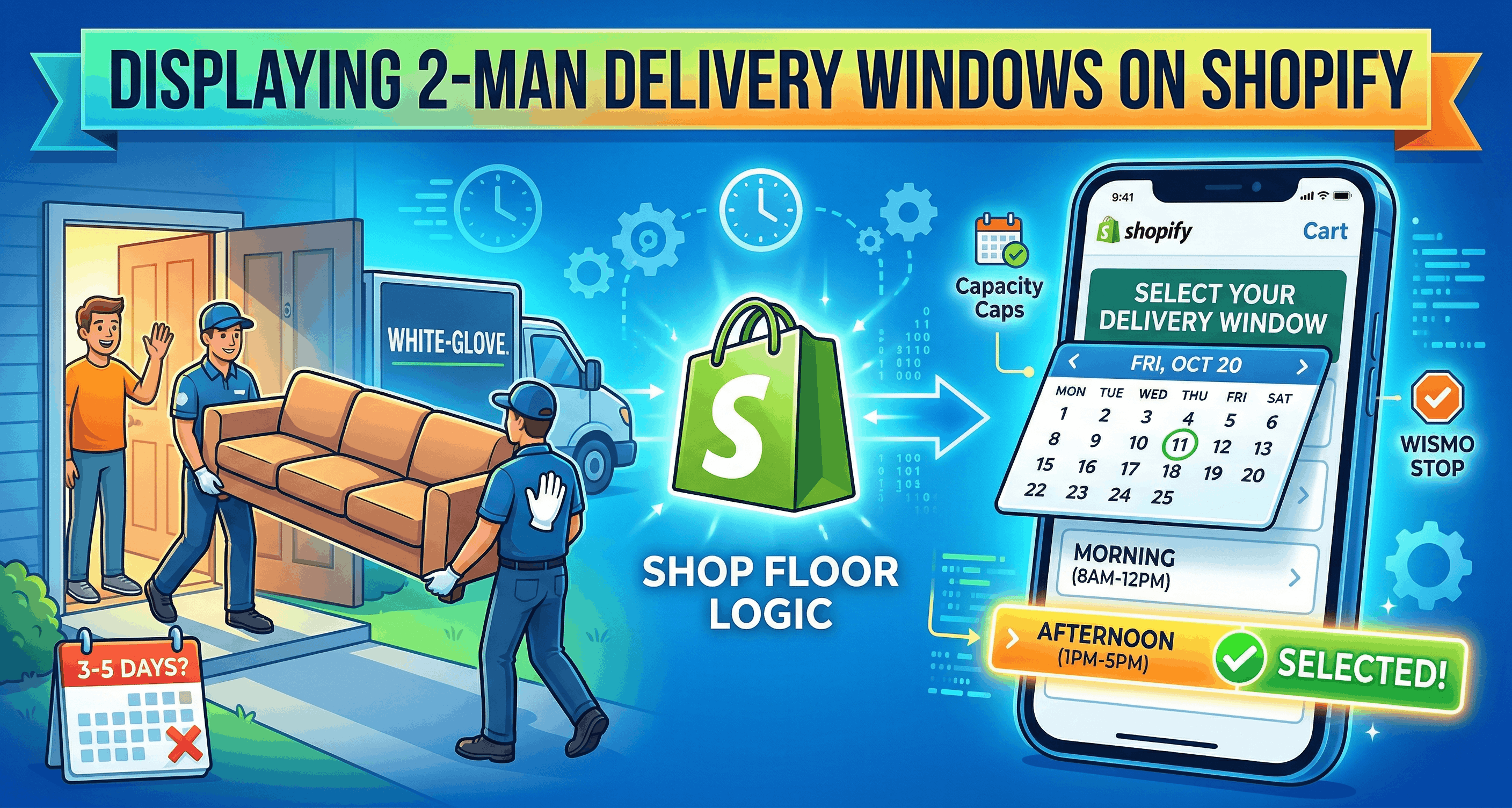
The most critical aspect of displaying the window is placement. The delivery calendar should appear on the Cart page or the Slide Cart before the customer enters the official checkout flow.
When a customer is preparing to spend $2,000 on furniture, knowing they can control the delivery date dramatically reduces cart abandonment. They see that they can easily take the following Friday off work, select the "Friday" time slot on the calendar, and proceed to pay with complete confidence.
2. Enforce Strict Daily Capacity Limits
A two-man white-glove team might only be able to perform six to eight deliveries in a single day, depending on assembly requirements. When configuring your delivery calendar app, you must set an "Order Capacity Limit." If the limit for Thursday is six orders, the calendar will automatically grey out Thursday the moment the sixth customer books that day. This mathematically guarantees you never overbook your fleet.
3. Implement Postcode and Distance Rules
A premium delivery app allows you to display specific delivery windows based on what ZIP code or postcode the customer enters. For example, if your two-man crew only services the London area, the app checks the customer's cart. If the customer enters a London postcode, the calendar appears. If they enter a postcode for Edinburgh, the calendar hides itself, and the customer is forced to select a standard (and much more expensive) LTL freight option.
Managing Time Slots Within the Window
Allowing a customer to pick a day is essential, but for white-glove delivery, picking a time slot is the gold standard.
Nobody wants to sit at home from 8:00 AM to 6:00 PM waiting for a truck. When you configure your delivery app, you can break the calendar days into specific chunks, such as:
Morning Window (8:00 AM - 12:00 PM)
Afternoon Window (1:00 PM - 5:00 PM)
Just like daily limits, you can set capacity limits on these time blocks. If your morning routes are full, the application will only display the afternoon window to the next customer at checkout.
Tagging, Routing, and Logistics Integration
Displaying the delivery window beautifully to the customer is only half the battle. The other half is ensuring that data reaches your warehouse and your drivers.
When a customer clicks "Thursday Afternoon" on the checkout calendar, the application automatically tags the Shopify order with metadata (e.g., Delivery-Date: 10/14; Time-Slot: Afternoon).
Integrating with 3PLs
If you use a Third-Party Logistics (3PL) provider to handle your white-glove deliveries, this metadata is crucial. Ensure your chosen delivery app integrates cleanly with your warehouse's routing software (like ShipStation, Descartes, or Onfleet). The 3PL's routing software reads the Shopify tag, understands exactly when the order is due, and automatically maps the most efficient driving route for the two-man crew.
The Buffer Zone (Lead Times)
Two-man logistics require intensive planning. You cannot allow a customer to check out at 11:00 PM and select a delivery window for 8:00 AM the next morning. To manage this, easily configure a native "Lead Time" rule inside the delivery app. If you require 48 hours to pick, stage, and route a heavy item, instruct the calendar to always block out the next two days. The earliest delivery window a customer will see is three days from now.
The Bottom Line
When you are selling high-value, heavy items that require two-man delivery, the checkout experience must mirror the premium nature of the product.
Hoping the customer answers their phone when the delivery driver calls from the driveway is an expensive, failed strategy. The best way to display delivery windows is to force the customer to explicitly select an available date and time slot via a dedicated calendar app during checkout. By combining elegant calendar UI with strict backend capacity limits, you eliminate WISMO tickets, eradicate redelivery fees, and provide the frictionless experience luxury buyers expect.
Frequently Asked Questions (FAQ)
Can I set different delivery windows for different products?
Yes. If you sell small pillows and large sectionals, you can configure the delivery app using product-based rules. The calendar will enforce a multi-day two-man delivery lead time if a sectional is in the cart, but allow next-day standard shipping if only the pillow is purchased.
What is the best Shopify app for two-man delivery scheduling?
Flare and Zapiet are frequently recommended for complex, heavy-goods scheduling. Flare is particularly strong for high-volume furniture operations that require extensive customization around daily order limits, product lead times, and date blocking.
Can I block out weekends for two-man deliveries?
Absolutely. Most delivery date apps have a "Blocked Dates" feature. You can permanently grey out Saturdays and Sundays on the calendar, as well as specific public holidays when your two-man crews are not operating.
How do I handle customers who miss their delivery window?
If a customer selects a window but is not home, the standard practice is to charge a redelivery fee. Because the customer specifically chose the date on the calendar (which provides an audit trail), disputes over redelivery fees and chargebacks are much easier for merchants to win.
Should I display the delivery window on the product page?
While it is helpful to provide general shipping timelines (e.g., "Usually delivers in 2-3 weeks") on the product page, the actual interactive calendar is best placed on the Cart page or securely within the Checkout flow so the customer can verify their actual availability before paying.